
1. Log In
- Visit cloud.bluedevils.org and log in with your credentials.
2. Navigate to the Events Section
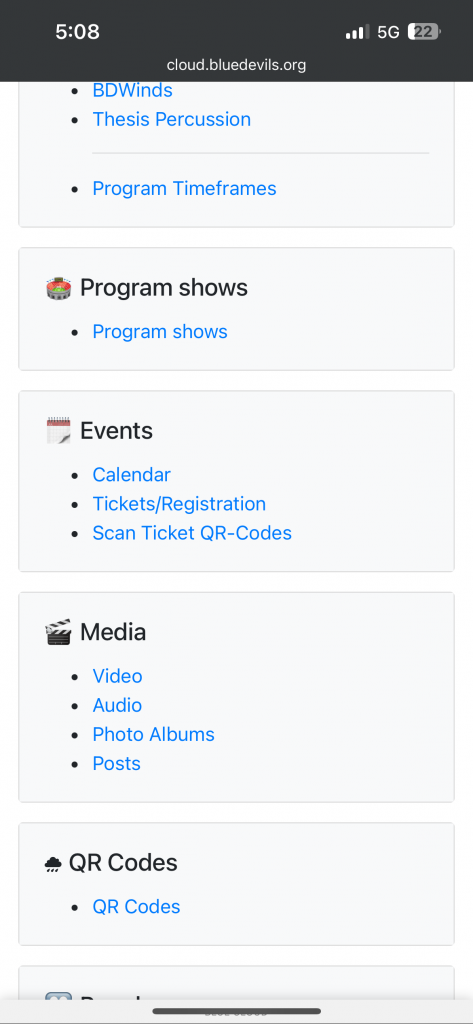
- Scroll down to the Events section.
- Tap “Scan Ticket QR-Codes.”
3. Select the Event
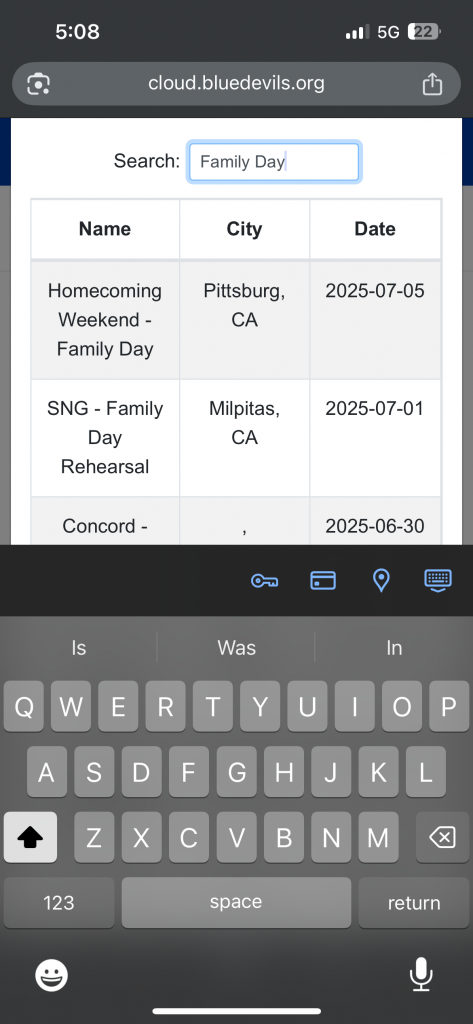
- In the search field, type the name of the event (e.g., “Family Day”).
- Locate the correct event from the list and tap it.
4. Launch the QR Scanner
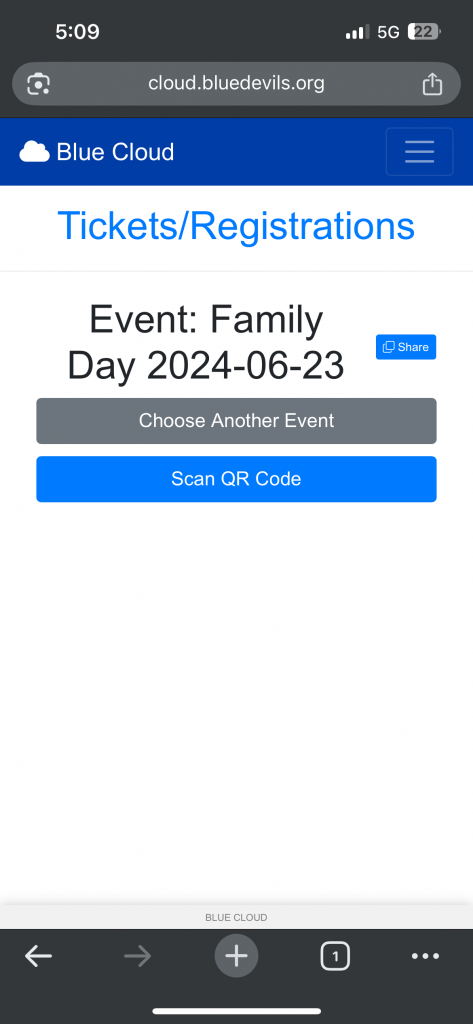
- Once the event is selected, you’ll see a screen with the event name and two options:
Choose Another EventorScan QR Code - Tap “Scan QR Code”.
5. Allow Camera Access
- When prompted, allow access to your device’s camera.
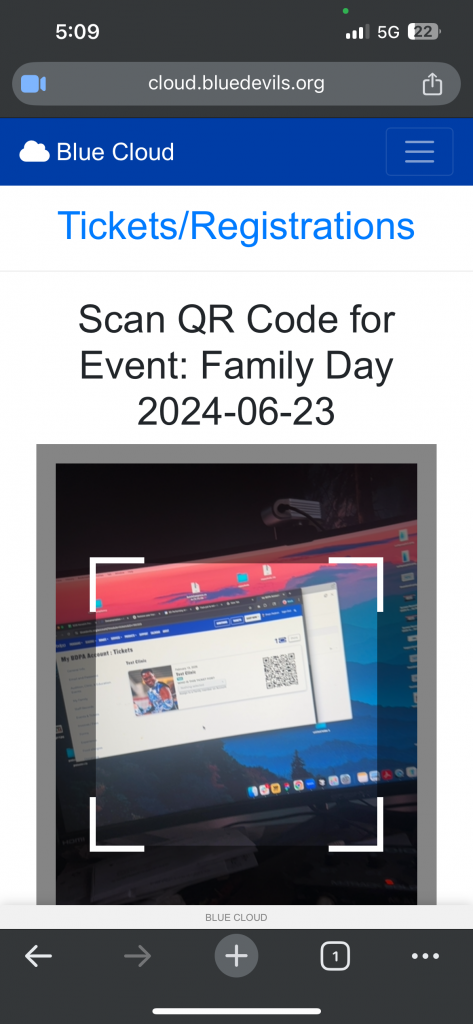
- Your camera will activate with a scanning interface.
6. Scan the Ticket
- Hold the ticket’s QR code within the camera frame.
- The system will automatically read and validate the ticket.
7. View Results
✅ Successful Scan
- A green confirmation will appear:
“SUCCESS – Ticket Scanned Successfully”
❌ Errors You May See
“Wrong Event” – The ticket does not match the selected event.
“Ticket already scanned” – Ticket QR Code has already been scanned. This can be verified by going to the tickets module in cloud. https://cloud.bluedevils.org/events/tickets/